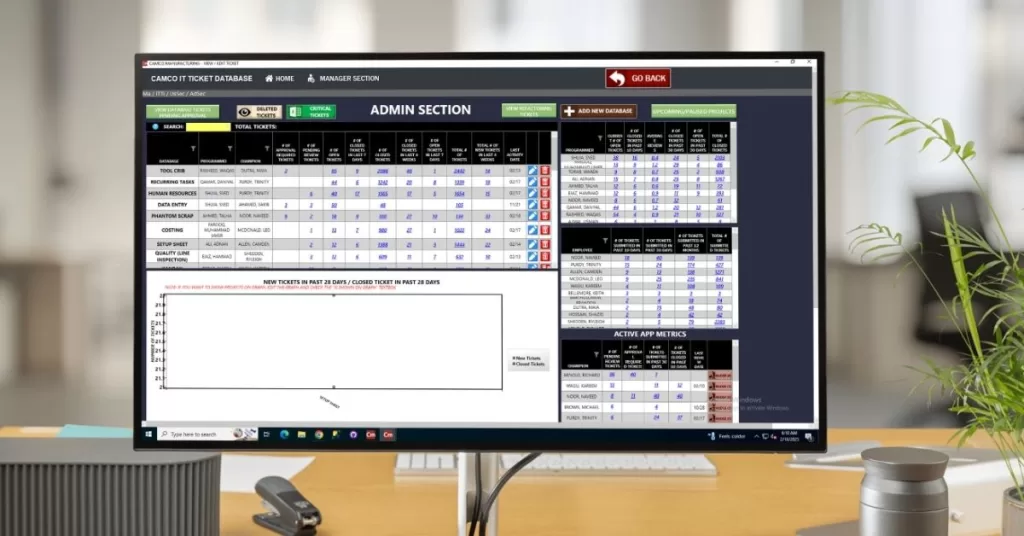
The admin section is for IT admins and managers to manage the ticketing system, specifically including ticket type, reporting, settings, adding new users, modifying permissions, and organizing IT Tickets. Moreover, this section provides access to tickets/project reports, total tickets (ticket database, programmer, champion ticket closed, and much more), new/closed tickets in the past 28 days, and comprehensive reports/analytics.
- Application
Texono IT Ticketing System
The IT Ticketing System is an IT ticket management application for organizing and assigning IT administration tasks and projects within the teams/organization. To add on, this app helps the IT department keep track of their IT tasks and how well they’re going. Likewise, it helps to manage IT tasks with your team and organization.
Texono IT Ticketing System
The IT Ticketing System is an IT ticket management application for organizing and assigning IT administration tasks and projects within the teams/organization. In fact, this app helps the IT department keep track of their IT tasks and how well they’re going. Moreover, it helps to manage IT tasks with your team and organization.
Additionally, the IT Ticketing software helps businesses to manage the entire lifecycle of different IT tasks/projects within IT support and tickets, including ticket creation, assignment, tracking, resolution, and reporting. Furthermore, it also includes advanced features (If needed on demand) like automation and knowledge base integration.
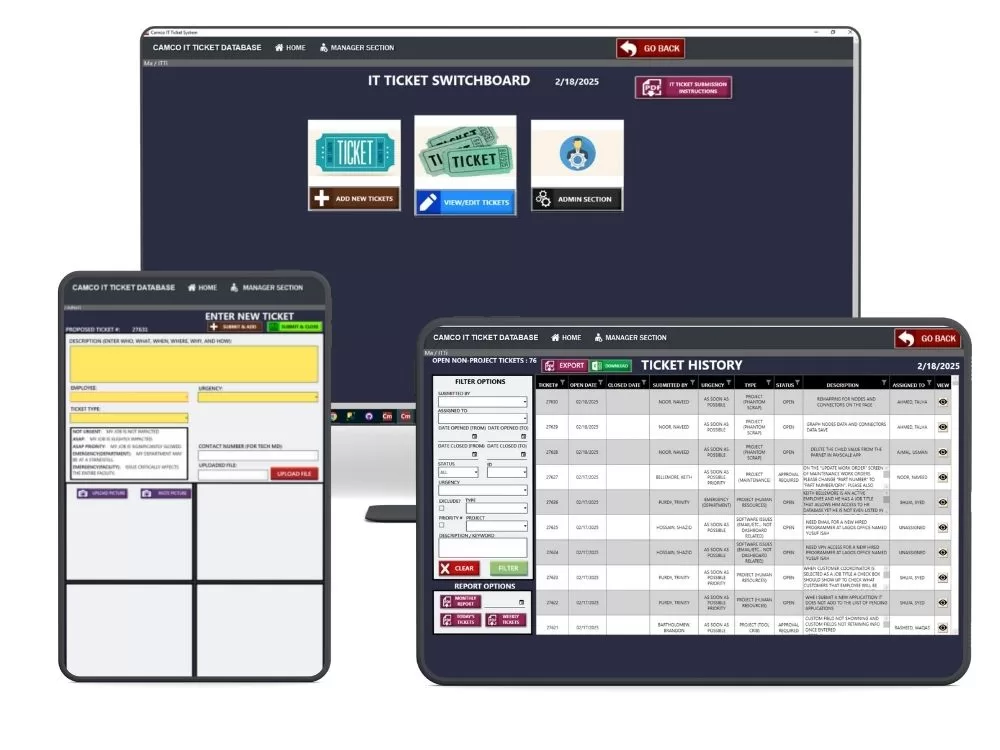
About IT Ticketing System
The IT Ticketing System is a desktop and Web Application, and in addition, it is also a Modular part of Texono Manufacturing ERP. Therefore, it enables users to submit and track IT support tickets. Ultimately it provides a centralized and organized platform for managing all IT support requests.
• To begin with, the advanced IT Ticketing Process (Ticket Submission, Review & Assignment, Completion, Review & Close) streamlines the workflow.
•Moreover, it provides the ability to track, prioritize, assign, and resolve tickets efficiently.
•In addition, it offers a comprehensive overview of ticketing, including the status and details of each issue.
• Finally, it includes advanced features like automation to further enhance efficiency by automating repetitive tasks.
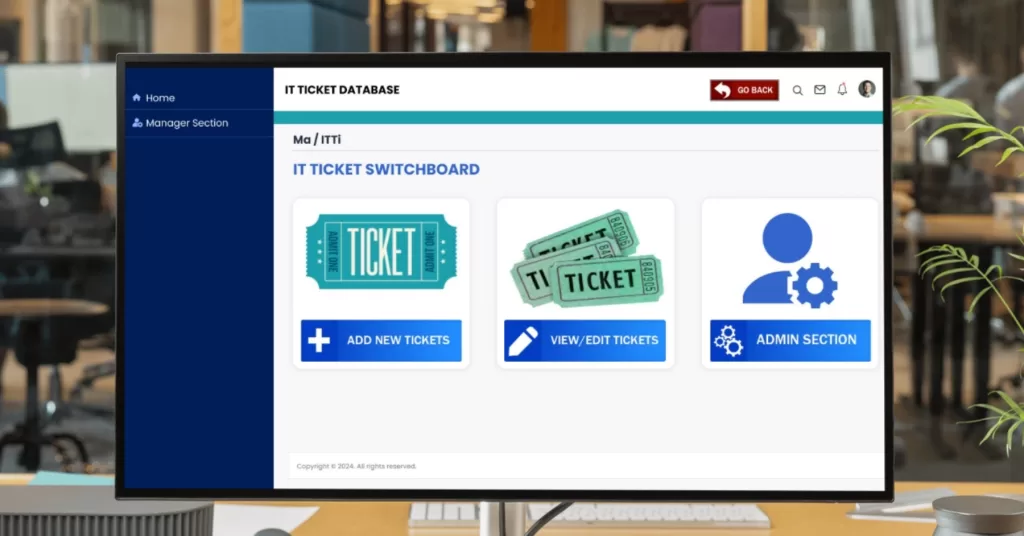
Zuggo IT Ticket Management System Core Features
01
Ticket Creation
The Texono IT Ticketing System allows users to submit support requests by opening a ticket using the “Create New Ticket Section.” Specifically, this is for submitting new tickets, such as a unique ticket number, description of the issue, employee selection, urgency, and ticket type.
02
Categorization & Prioritization
The app enables sorting tickets based on “Ticket Type” and “Urgency” during the ticket creation process. As a result, the system empowers IT teams to prioritize these tickets. Furthermore, the admin section allows IT admins and managers to manage the ticket type, further supporting categorization.
03
Assignment & Tracking
The System simplifies assigning tickets to appropriate agents through the “Employee selection” field when entering a new ticket. At the same time, it provides a comprehensive overview of each ticket, including who it’s assigned to and its current status (open, closed, in progress, or awaiting approval).
04
Resolution & Closure
The Texono IT Ticketing System is designed to manage the entire lifecycle of IT tasks, including resolution, and displays open and closed dates. In this way, the process involves “Ticket Completion” by the assigned employee and later on, “Ticket Review & Close” by the IT manager/CHAMPION.
05
IT Project Management
The IT System is also used to manage the entire IT project and provides details about each ticket, including the “Ticket and Project associated.” In addition, the system is described as being able to organize and assign IT administration tasks and projects, and thus helps manage the lifecycle of IT tasks/projects.
06
Reporting & Analytics
The admin section provides access to tickets/project reports, total tickets (including the ticket database and details on closed tickets), and data on new/closed tickets. Additionally, the system offers comprehensive reports/analytics to track key metrics and consequently identify trends in the support process.
About IT Ticketing System
The primary feature of the IT Ticketing System is to provide a centralized and organized platform for managing all IT support requests. In particular, it allows IT Managers/employees to easily submit tickets detailing their issues, and at the same time, it empowers IT teams to efficiently track, prioritize, assign, and resolve these tickets. As a result, it ensures that no request is overlooked and that IT problems are addressed immediately and carefully.
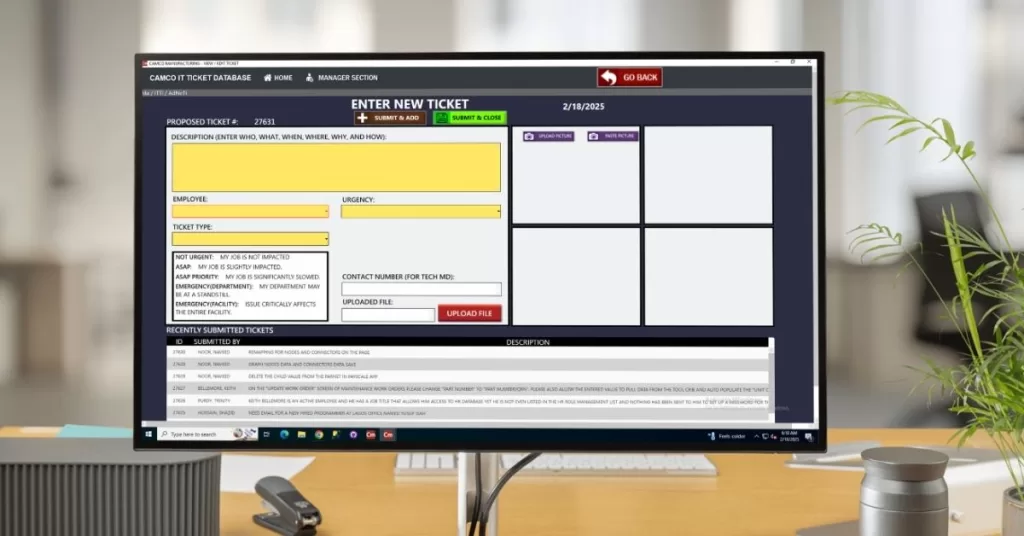
Entering New Ticket
To begin with, the Submit/Add new ticket section is to assign new tickets such as Ticket # 123 (Unique ticket number), Description (ticket information, who is assigning, what, why, how, etc.), Employee selection (Employee whom ticket is going to assign), Urgency (Ticket priority/how much urgent it is), Ticket Type and other features like Contact number, upload/paste picture, and file upload option. In addition, this lists recently submitted tickets by ID, submitted by, and description.
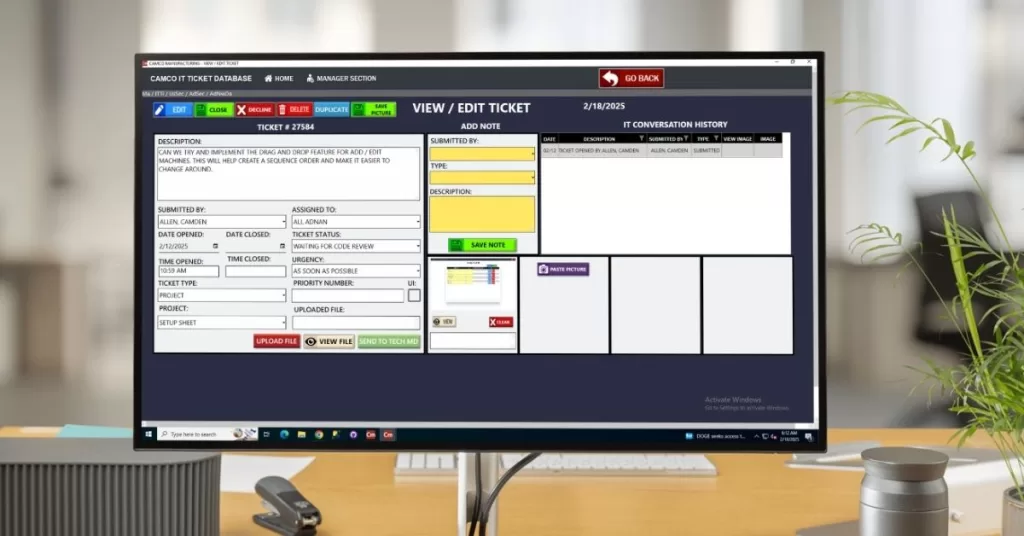
View/Edit Tickets
The IT Ticketing System features the View/Edit Tickets section, which provides a comprehensive overview of every ticket. Specifically, this includes who submitted the ticket, who it’s assigned to, open and close dates, current status (whether it’s open, closed, in progress, or awaiting approval), Time open/close, Ticket and Project associated, and much more. In addition, when assigning tickets, the IT admin/managers can also add ticket images/screenshots, descriptions, and special notes, and can also upload files as required to provide instructions.
Admin Section
The IT Ticketing Process
This is how the IT Ticketing System works. For example, let’s say we have an error or need a pop-up feature in the task app. The IT admin opens a ticket using the Create New Ticket Section and clearly defines the concern. (e.g., crashing with error code #456. Impact: Cannot operate Machine #7, halting production line.)
After that, assign the ticket to the preferred employee and define the ticket urgency, ticket type, screenshots, etc. Subsequently, the ticket is now visible in the View/Edit Ticket section and assigned to the employee to whom the ticket is assigned (also ticket status, e.g., open, in progress, closed.) Finally, the employee completes the ticket, and then the IT Manager/CHAMPION approves and closes the ticket.
#1 Ticket Submission (creatinga new ticket when needed to assign)
#2 Ticket Review & Assignment (The IT support team/IT manager monitors the new tickets)
#3 Ticket Completion (The employee reviews the ticket, reads the instructions, and completes it)
#4 Ticket Review & Close (The IT manager/CHAMPION reviews the ticket work and approves)

The IT Ticketing Process
The Texono IT Ticketing System is a software solution designed to manage and streamline the process of tracking, resolving, and documenting IT-related issues and requests. Moreover, the IT ticketing software is built using .NET, C#, and Blazor and therefore can be easily customized and scaled according to each business’s IT requirements.
To start with, you can customize both web and desktop applications according to your IT needs and use the software as a SaaS solution, on premises, or own it to use according to your needs. Meanwhile, let’s schedule a quick demo/meeting to talk about your project and make sure we are the right team for it.
Next, assign the ticket to the preferred employee and define the ticket urgency, ticket type, screenshots, etc. Afterward, the ticket is now visible in the View/Edit Ticket section and assigned to the employee to whom the ticket is assigned (also ticket status, e.g., open, in progress, closed) Eventually, the employee completes the ticket, and ultimately, the IT Manager/CHAMPION approves and closes the ticket.
First of all, #1 Ticket Submission (creatinga new ticket when needed to assign)
Next, #2 Ticket Review & Assignment (The IT support team/IT manager monitors the new tickets)
After that, #3 Ticket Completion (The employee reviews the ticket, reads the instructions, and completes it)
Finally, #4 Ticket Review & Close (The IT manager/CHAMPION reviews the ticket work and approves)


We help your business grow with powerful SaaS solutions.
Resources
© 2025 Texono. All rights reserved.